


R4 DECK — Steam Deck SteamOS Compatible
R4 DECK — Steam Deck SteamOS Compatible
Couldn't load pickup availability
-

I went with the 256GB version to test it out and I'm really happy with it! It has around 43,000 games, which is honestly more than enough for casual gaming. All the emulators are preconfigured and run super smooth on the Steam Deck. Perfect for travel or gaming on the go. I might upgrade to the bigger one later, but this one's been awesome -

I've tried a few different SD card packs before but this one's on another level. The 512GB R4DECK card came loaded with 50,000 games. Everything is organized by console, and it even has save states and box art. I can't believe how easy it was to use. My Steam Deck feels like a retro game museum now.
-

Legit one of the best things I've bought for my Steam Deck. It's literally plug and play. Just pop it in and boom — you're playing PS2, GameCube, old-school arcade games, stuff I hadn't played since I was a kid. No setup, no headache. Totally worth it for the convenience alone


R4 DECK — Steam Deck SteamOS Compatible




ONE MENU
70+ consoles, already configured
You don't download an emulator, pick a core, or map a single button. Every system is installed, tuned for the Deck, and sorted with box art.
YOUR LIBRARY
43,000 games on the 256GB. 50,000 on the 512GB.
Sorted by console so you pick something and play instead of scrolling filenames. Add or delete anything you want — it's your card.

BUILT FOR THE DECK
Thirty seconds from box to playing
Shut down, slide it in, hold Volume Down and press Power, pick the card. That's the whole setup. Printed instructions are in the box.
A few of the systems inside


One card, or a shelf of consoles
What it would actually take to play all of this the other way.
| R4 DECK | Collecting the consoles | |
|---|---|---|
| 70+ consoles in one device | ||
| No setup, no configuring emulators | ||
| Fits in your pocket | ||
| Costs less than two new games | ||
| Nothing written to your Steam Deck | ||
| Saves your progress |
Questions people ask before they buy
Do I have to set anything up?
Do I have to set anything up?
No. Every emulator is already installed and configured for the Steam Deck's controls and screen. You shut the Deck down, put the card in, boot from it, and you're at a menu. There is nothing to download and you don't need a PC.
How do I boot it on my Steam Deck?
How do I boot it on my Steam Deck?
Five steps, about thirty seconds
- Hold the power button and choose Shut Down. Wait until the screen is fully black — sleep mode will not work.
- Insert the card into the microSD slot on the bottom edge of the Deck.
- Hold Volume Down (−), then press Power once. Keep holding Volume Down until the Boot Manager appears.
- Highlight the SD card entry and press A.
- The menu loads in a few seconds. You're playing.
Printed instructions come in the box.
Can I see the full list of games?
Can I see the full list of games?
Yes — every title is listed system by system. See the full game list and download the spreadsheet for your card. It opens in Excel, Numbers or Google Sheets, with one tab per console.
The list is a starting point, not a limit. It is an ordinary microSD card — plug it into a computer and add or remove whatever you like, including new releases as they come out.
256GB or 512GB — which one should I get?
256GB or 512GB — which one should I get?
- The 256GB card has 43,000 games and covers every console generation most people want on a handheld. This is the one most buyers pick.
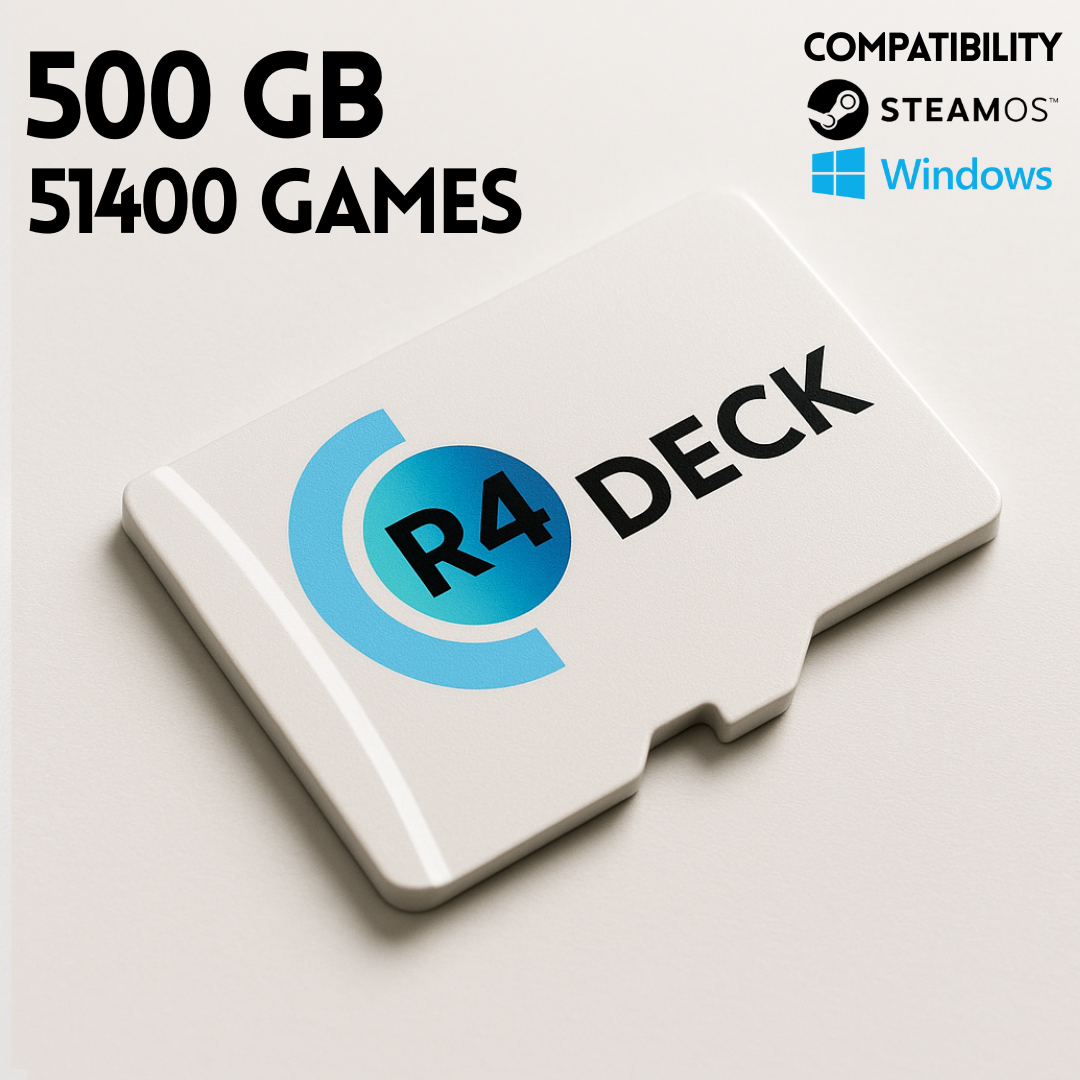
- The 512GB card has 50,000 games — 7,000 more, plus roughly double the free space for adding your own.
If you're unsure, take the 256GB. The extra games on the bigger card are deeper-catalogue titles, and both include the PS2, GameCube and Wii libraries.
Will this touch my SteamOS install or my Steam games?
Will this touch my SteamOS install or my Steam games?
No. The card boots as a separate system — nothing is written to your Deck's internal drive and your Steam library is not touched. Take the card out, boot normally, and your Deck is exactly as it was.
Will my progress save?
Will my progress save?
Yes, in every game, the same way it worked on the original hardware. Saves are written to the card, so they travel with it.
Can I add or delete games?
Can I add or delete games?
Yes. It's an ordinary microSD card — plug it into a computer and add or remove whatever you like. The library on it is a starting point, not a locked list.
Does it work on both the LCD and the OLED Steam Deck?
Does it work on both the LCD and the OLED Steam Deck?
Yes, both models. The 256GB and 512GB cards also work on Windows handhelds, laptops and desktops.
What if it doesn't work when it arrives?
What if it doesn't work when it arrives?
Email info@r4deck.com and we'll walk you through it. Nearly every problem is the Deck being asleep instead of fully shut down, or Volume Down being released too early.
Testimonials
-
Perfect for nostalgia fans
I grew up with N64, Game Boy, and PS1, and this card brought all those memories back. The UI is clean, fast, and intuitive.
The only thing is the first boot took a little longer than expected, but after that it was instant.
My kids even discovered old games I used to play. Honestly, super fun purchase.
-
Way better than I expected!
I honestly wasn't sure what to expect, but this R4 Deck card completely blew me away.
I plugged it into my Steam Deck, followed the quick setup guide, and BOOM everything loaded perfectly. No crashes, no weird glitches, nothing.Performance-wise, it feels like having a whole new console. The organization is clean, the interface is smooth, and load times are super fast thanks to the card they use. I've bought similar cards in the past from other sellers and they were always buggy or missing files. This one? Perfect out of the box.
If you're debating between this and messing with installs yourself… just get this. It saves HOURS of headaches.
Highly recommended.

-
Perfect for travel and long sessions
I travel a lot for work, so I wanted something that would let me carry a ton of content without having to constantly download or switch storage. The R4 Deck card turned out to be the perfect solution.
The SD card quality is legit fast, reliable, and works instantly. The preload is clean, well-organized, and updated. No junk files, no empty folders, everything just works. My Steam Deck recognized it immediately.
I've already recommended it to a couple of coworkers because it totally transforms it into an all-in-one machine.
For the price, it's honestly a steal.


Cards ship from current stock and the physical card may not look identical to the photographs. Contents and capacity are as described. Not affiliated with, endorsed by, or sponsored by Valve Corporation.